
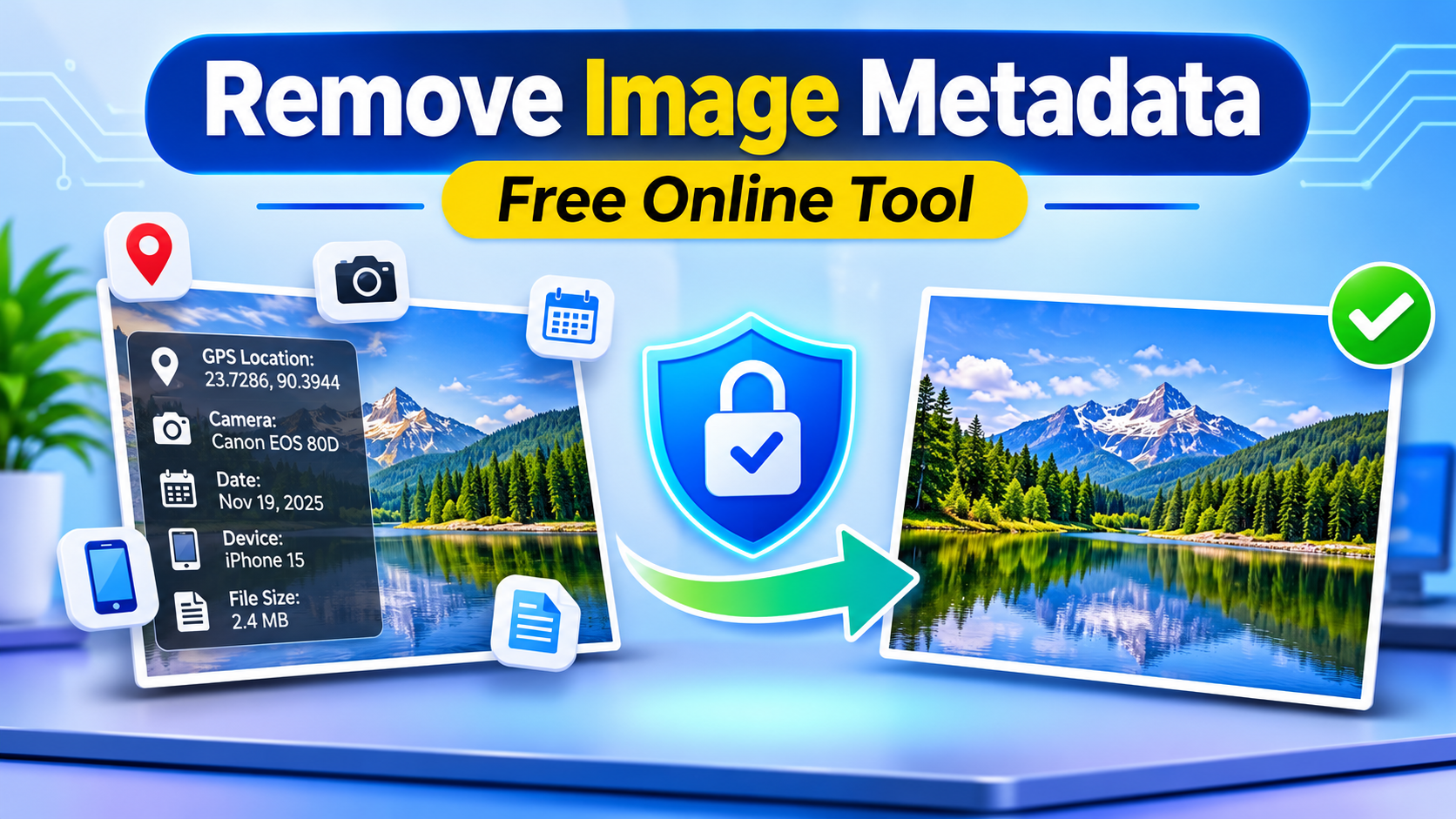
Every image you share online may contain hidden information. This information is not always visible when you open or view a photo. However, it can reveal details about your device, location, date, and image editing process. This hidden information is called metadata.
Many people share photos on social media, websites, blogs, and online communities every day. But they often forget to check what information their images contain. As a result, they may share more information than they intended.
The good news is that you can remove metadata from an image online for free. You don't need advanced skills or expensive software. In this guide, you'll learn what image metadata is, why it matters, and how to remove it easily.
What Is Image Metadata?
Image metadata is extra information stored inside an image file. It tells you details about the image, such as when it was created, which device captured it, or which software edited it.
For example, when you take a photo with your smartphone, your phone may automatically save additional information. This information can stay inside the image even after you share it.
Some common types of image metadata include:
- Date and time: When the photo was captured or edited.
- Device information: The camera or smartphone used to take the picture.
- Location information: GPS coordinates showing where the photo was taken.
- Camera settings: Details such as exposure, ISO, and shutter speed.
- Software information: The application used to edit or process the image.
- Creator details: Information about the person or organization that created the image.
These details can be useful for photographers and editors. However, ordinary users may not want to share all this information with others.
Why Should You Remove Metadata from Images?
Removing metadata from images can help you protect your privacy. It can also help you prepare photos before uploading them to websites or sharing them with other people.
Here are some important reasons to remove image metadata.
1. Protect Your Location Information
Some smartphones automatically add location information to photos. This happens when location access is enabled in your camera settings.
For example, you may take a photo inside your home, office, or another private place. The image could contain location details that show where you took it.
If someone checks the photo's metadata, they may find those location details. Therefore, removing metadata before sharing personal photos can help reduce this risk.
2. Remove Personal Information from Photos
Photos may contain information about your device, editing software, or image creator. You may not want strangers to see these details.
For instance, a photo could reveal which smartphone you use. It may also show the software used to edit the image.
Removing unnecessary metadata helps reduce the information attached to your shared images.
3. Share Photos More Privately
Many people upload personal photos to Facebook, Instagram, Pinterest, Reddit, and other platforms. They also share pictures through email and messaging apps.
However, not every platform handles image information in the same way. Some platforms remove certain metadata automatically, while others may preserve some information.
Therefore, cleaning your image before uploading gives you more control over the file you share.
4. Prepare Images for Websites and Blogs
Website owners, bloggers, and content creators often upload images every day. These images may come from smartphones, cameras, or editing software.
Before publishing, removing unnecessary metadata can help keep the image file cleaner. Moreover, it can reduce unwanted information in the file.
However, metadata removal alone does not guarantee better SEO or faster website loading. Image size, dimensions, and compression also matter.
5. Protect Your Digital Privacy
Digital privacy is important when sharing information online. Even a simple photo can contain details that you didn't expect to share.
For this reason, checking your images before uploading them is a useful habit. It can help you understand what information your files contain.
How to Remove Metadata from an Image Online for Free
You can remove metadata from your photos without installing any software. An online image metadata remover makes this process simple.
Follow these steps to clean your image.
Step 1: Open an Online Image Metadata Remover
First, open a free online image metadata remover in your browser. Choose a tool that offers a simple interface and explains its privacy practices.
You can visit AI Label Remover to explore online image privacy tools.
Choose a trusted website before uploading personal or sensitive images.
Step 2: Select Your Image
Next, find the image you want to clean. Click the upload button or image selection area on the website.
Then, select your image from your computer, smartphone, or tablet. Some websites may also allow you to drag and drop your file.
Most image tools support common formats such as JPG, JPEG, and PNG. However, supported formats may vary between tools.
Step 3: Start the Metadata Removal Process
After selecting your image, look for the metadata removal button. It may say Remove Metadata, Clean Image, or another similar label.
Click the button to start the process. The tool will process your image and remove supported metadata.
Depending on the website, this process may take a few seconds. Larger images may require a little more time.
Step 4: Download Your Cleaned Image
Once the processing finishes, the website may show a download button. Click it to save your cleaned image.
Choose a suitable location on your device. For example, you can save the file inside your Downloads folder.
Now, your cleaned image is ready to use. You can upload it to your website or share it with others.
Step 5: Check the Image Before Sharing
Finally, open your downloaded image and check that it looks correct. Compare it with the original image if necessary.
You can also use a metadata viewer to check which information remains. This step is helpful when privacy matters.
Moreover, don't assume every online tool removes every type of metadata. Different formats may contain different types of information.
Can You Remove Metadata Without Losing Image Quality?
Yes, you can remove metadata without changing the visible quality of your image. Many metadata removal tools remove hidden information without resizing or compressing the image.
Metadata is separate from the visible image content. Therefore, a tool can remove certain information while keeping the photo looking the same.
However, not every tool works in the same way. Some websites may convert the image into another format. Others may compress the file during processing.
If you want to keep your original quality, look for a tool that removes metadata without unnecessary compression.
Additionally, compare the original and cleaned images before using them. This helps you make sure the tool hasn't changed the image appearance.
Which Image Formats Can Contain Metadata?
Different image formats can store different types of metadata. Understanding these formats can help you choose the right tool.
JPEG and JPG Images
JPEG is one of the most popular image formats. Smartphones, digital cameras, and many websites use JPEG images.
These images may contain camera details, timestamps, GPS information, and editing details. Therefore, removing metadata from JPEG images can be useful before sharing them.
PNG Images
PNG is another common image format. People often use it for screenshots, graphics, logos, and transparent images.
PNG files can also contain additional information. Depending on how the image was created, this information may include software details or text data.
WebP Images
WebP is widely used on websites because it supports efficient image compression. It can help websites deliver smaller image files.
However, WebP images may also contain metadata. Therefore, checking them before sharing can be helpful.
TIFF Images
TIFF images are common in photography, printing, and professional image editing. They can store a large amount of image information.
Some TIFF files may contain extensive metadata. If you regularly work with professional images, checking this information may be important.
How to Check Image Metadata Before and After Removal
You can check metadata to understand what information your image contains. This can also help you confirm whether a removal tool worked.
Here are a few simple ways to check metadata.
- On Windows: Right-click the image, select Properties, and open the Details tab.
- On Mac: Open the image in Preview and check the available information through the file or image information options.
- Using online tools: Open a metadata viewer and upload your image to inspect its available information.
However, online metadata viewers may require you to upload your image. Therefore, avoid using unknown websites for sensitive photos.
You can also check the cleaned image using the same method. Comparing the original and cleaned files can help you understand what information was removed.
Is It Safe to Remove Image Metadata Online?
Online tools make image cleaning easy. However, uploading images to a website means you should consider its privacy practices.
Before using an online tool, check its privacy policy. Look for clear information about how uploaded images are processed and whether files are stored.
Some tools process images directly inside your browser. Others send files to their servers for processing.
If you are working with personal or confidential images, browser-based processing may offer an additional privacy benefit. Nevertheless, check how the tool actually works before trusting it.
Also, avoid uploading sensitive photos to websites that don't explain their privacy practices.
Does Removing Metadata Remove AI Labels from Images?
Not always. Metadata removal and AI label removal are related, but they are not exactly the same.
Some AI-generated images may contain information about how they were created. Certain image files may also include details about their editing history or AI-related processes.
However, AI labels can appear in different ways. Some labels may exist inside image metadata, while others may be added by a social media platform.
Therefore, removing image metadata does not guarantee that every AI-related label will disappear. It also cannot remove visible text or labels directly from the image itself.
If your goal is to remove information stored inside an image file, use a tool that clearly explains what types of information it supports.
Frequently Asked Questions (FAQ)
Can I remove image metadata for free?
Yes, many online tools offer free metadata removal. You can upload an image, remove supported information, and download the cleaned file without installing software.
Does removing metadata delete GPS location?
It can remove GPS location information if the tool supports removing that data. However, you should check the cleaned image to confirm the results.
Does metadata removal change the image?
Metadata removal usually doesn't change the visible image. However, some tools may convert or compress the image during processing.
Can I remove metadata from images on my phone?
Yes, you can use online tools through your mobile browser. Most simple image cleaning tools work on smartphones, although their supported formats and features may vary.
Do Facebook and Instagram remove image metadata?
Some social media platforms remove certain metadata during image processing. However, their processing methods may change over time.
Therefore, removing unnecessary metadata before uploading can give you more control over the original file.
Does removing metadata make my images completely private?
No. Removing metadata can reduce the information stored inside an image file. However, it cannot hide everything visible in the photo, such as faces, buildings, signs, or other identifiable details.
Final Thoughts
Removing metadata from images is a simple way to protect some of your digital privacy. Your photos may contain information about your device, location, creation date, and editing process.
Fortunately, you don't need technical skills to clean your images. Free online tools can make the process quick and simple.
First, upload your image. Next, remove the supported metadata and download the cleaned file. Finally, check the image before sharing it online.
Whether you share photos on social media, publish blog posts, or send images to others, checking metadata is a useful habit.
Take a few seconds to clean your images before sharing them. It can help you share photos while keeping unnecessary information out of your files.